
Create an HTML eNewsletter/email using Microsoft Outlook Express.
After spending hours researching on the web and considerable experimentation, I found a solution that worked for me.
This was achieved using Outlook Express version 5.02 (2022) for the Mac.
rather than
img src="/directory/photoimage.jpg"
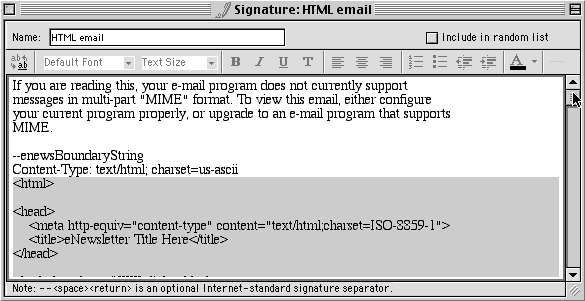
This will open up a new "Signature" window. Type in a "Name" for your signature file. For this example, we will name it "HTML email".
Copy/paste the following (or your own revision of it) into the "Signature" window:
If you are reading this, your e-mail program does not currently support messages in multi-part "MIME" format. To view this email, either configure your current program properly, or upgrade to an e-mail program that supports MIME.
--enewsBoundaryString
Content-Type: text/html; charset=us-ascii
(Because of the variations that can happen with the copy/paste functions across different programs, be sure that after you paste, there is only one carriage return space between the "--enewsBoundaryString" and "Content-Type: text/html; charset=us-ascii" lines.)
This is the default message that people will see only if their email program does not support HTML/MIME messages. You can customize this for your own needs, but be sure to leave the line spacing as well as the last two lines of code intact.
(Your code should resemble the example in the picture above.)
On the next line, right under "Content-Type: text/html; charset=us-ascii", copy/paste your HTML code from your HTML eNewsletter/email file (Be sure that your links are absolute!).
Clicking to close this window will bring up the prompt to "save". Save the file and close your "Signatures" window.
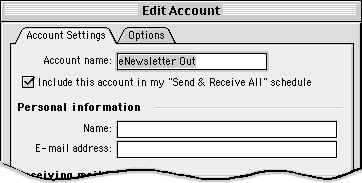
Name this account something like "eNewsletter Out". Be sure to also fill in your regular email account settings.
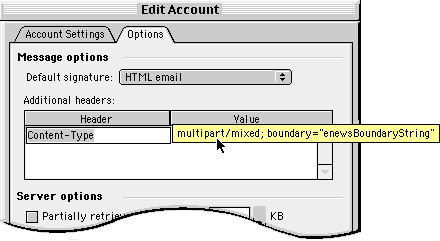
Click on the "Options" tab to edit your message options.
In the "Default Signature" pull down menu, select the "HTML email" file.
Under the "Header" column, type in:
Content-Type
Under the corresponding "Value" column, type in:
multipart/mixed; boundary="enewsBoundaryString"
(being careful this time to actually use the quotes surrounding "enewsBoundaryString").
Select "OK" which will save your changes.
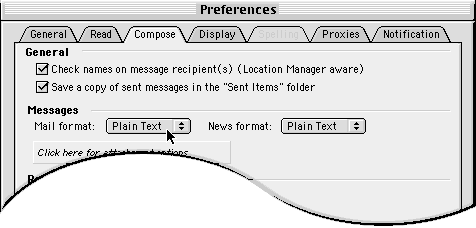
In the "Messages" / "Mail Format" pull down menu, select "Plain Text".
Select "OK" which will save your changes.
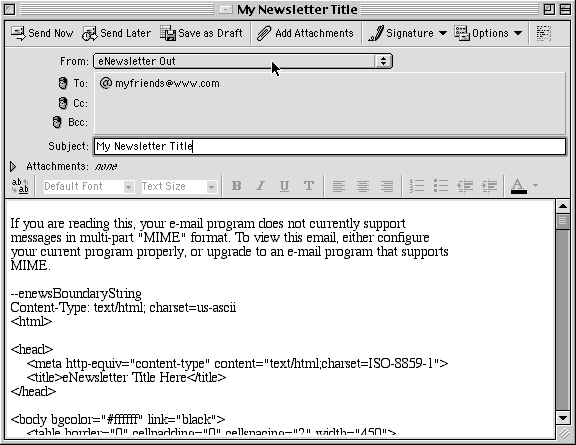
Simply select "New", like you normally would to compose an email. Address and add the Subject line accordingly.
In the "From" pull down menu, select "eNewsletter Out". This will automatically add your plain text and HTML code file into the body of the email.
Don't Panic!
It may look like code now, but when your recipients get it on the other end, it will be translated into your original HTML layout.
Just to be sure everything is working fine, I will always send a copy to myself first, as a test.
It will also STILL look like code when you view it from your "Sent Items" folder, but when you find it in your "In Box", . . .
Congratulations!
You have just learned how to Create an HTML eNewsletter/email using Microsoft Outlook Express.